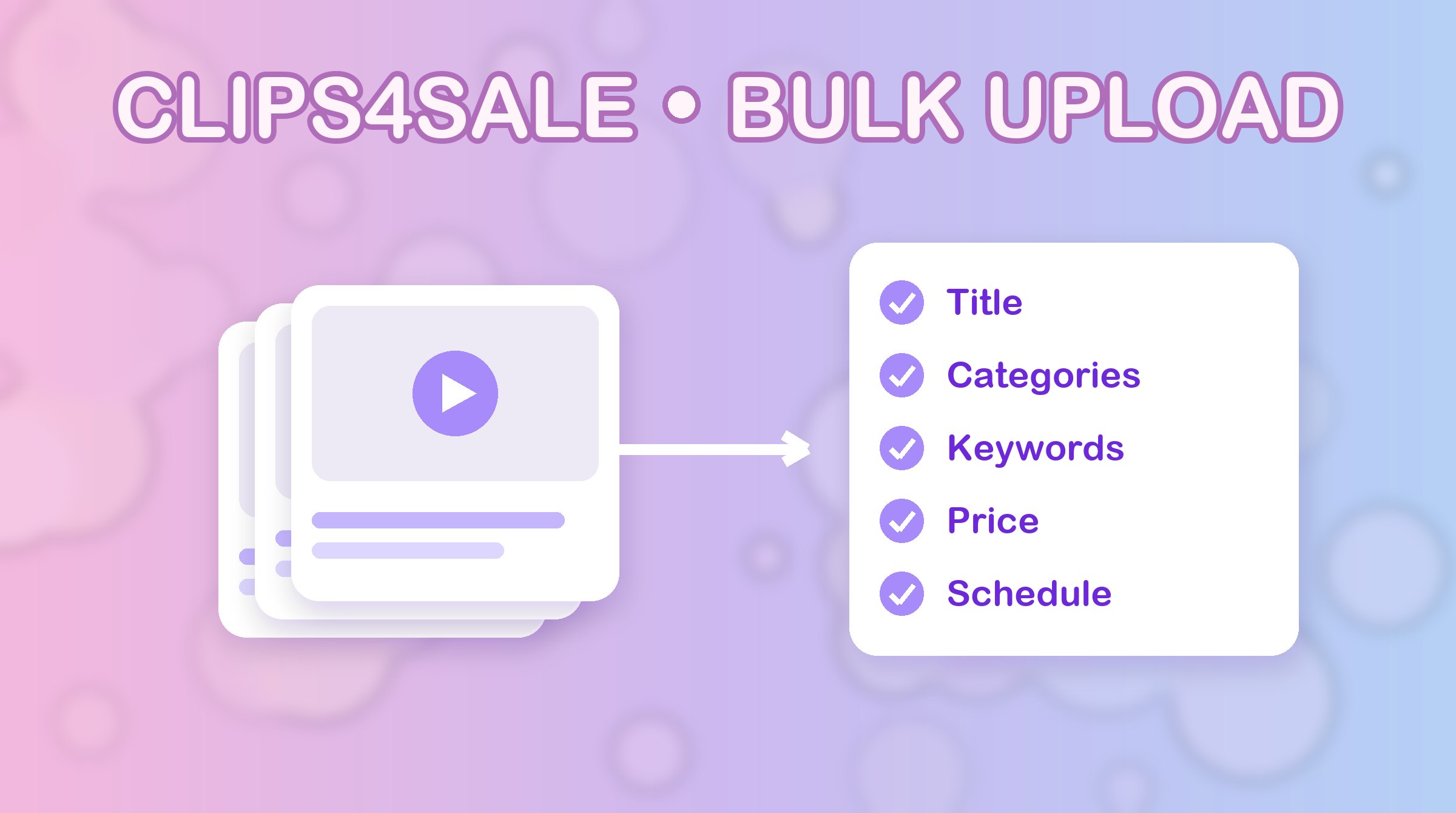
If you have a backlog of clips and a Clips4Sale store, sooner or later you search for a way to stop filling in the same form by hand. This article sorts out what is actually available in 2026: what Clips4Sale's own Creator Workspace can do in bulk, where it stops, which third-party tools go further, and what you risk when software works inside your store. Everything about Clips4Sale's features comes from its own creator help centre, with links.
What "Automatic" Can Mean
People use "automatic uploader" for three different things, and it helps to separate them before you compare anything.
- Bulk file upload. You hand over many video files at once instead of one at a time. The files arrive, but every clip still needs its title, description, categories, keywords, price and release time.
- Form filling. Software types the details into the upload form for you, from data you prepared once. You review and publish.
- Fully hands-off posting. Software uploads and publishes with nobody checking. I'd stay away from this one, for reasons covered in the risk section.
Clips4Sale itself gives you the first. Third-party tools aim at the second. Knowing which of the two you actually need saves a lot of searching. If your problem is "the files take forever", the site's own bulk upload may be enough. If your problem is "I type the same fifteen keywords into every form", it won't be.
What Clips4Sale Itself Offers
Uploading on Clips4Sale runs through its Creator Workspace. The features below are the ones described in its creator help centre in November 2026.
Bulk Clip Upload
The Bulk Clip Upload help article says the feature lets you upload multiple clips simultaneously. You press Upload in the Creator Workspace, select or drag in your clips, and the article says you can add an unlimited number of them. The maximum is 50 GB per file. When the upload starts you land on the Drafts page, where a draft is created for each file. Thumbnails are generated automatically when a file finishes, a progress panel in the corner shows each file, and failed uploads can be retried unless the format isn't accepted or the file is over the size limit.
That solves the file side well. What the article doesn't describe is setting titles, categories, keywords or prices for all of those drafts in one go. Each draft is still a clip you open and complete.
Importing from cloud storage
The upload page also lets you import files from Dropbox, OneDrive or Box after connecting the account, which is described in the cloud upload article. If your finished clips already sit in cloud storage, that saves you from pushing large files through your home connection a second time.
The details form
The Clip Upload article lists what each clip needs. These are the numbers worth knowing by heart:
| Field | What the help centre says |
|---|---|
| Title | Required. Filled in from the file name automatically, and you can edit it. |
| Description | No adverts for other sites, no email addresses or @ symbols, no unrelated keyword spam. |
| Category | One primary category, required. |
| Related categories | Up to 5. |
| Keywords | Up to 15. |
| Thumbnail | JPG or PNG, 16:9, up to 5 MB. Can be generated automatically. |
| Preview | MP4, 16:9, up to 60 seconds and 100 MB. An automatic 25 second preview is available. |
| Price | Required. Minimum $3.99, rounds up to .99. A price recommendation called SmartPrice is offered. |
| Release | Publish now, or schedule up to 365 days ahead. Scheduled times are in Eastern Time. |
| Drafts | Kept for 90 days from the last update, then deleted. |
Two details in that table are small time savers on their own. Because the title is taken from the file name, naming your export with the finished title means one field less to type. And because drafts are deleted after 90 days, a bulk upload of your whole backlog only makes sense if you will complete those drafts within three months.
Templates, copy and paste, bulk actions
The Content Management article lists quick actions on each clip, including "Use as Template", "Copy Details" and "Paste Details". For a series shot in one session, where categories and most keywords repeat, that is the closest thing to metadata reuse inside Clips4Sale.
There are also bulk actions on the Drafts and Action Required tabs. According to the help article they cover adding performers to several clips, marking clips as having no performer, submitting several clips for review, and deleting. Editing titles, keywords or prices in bulk isn't on that list.
What about CSV and FTP?
This comes up in almost every search on the topic. In the Creator Workspace help articles I read for this piece, I found no description of uploading by FTP or of importing clip details from a CSV file. That doesn't prove neither exists for any account, so if either matters to you, ask the Clips4Sale creator support team directly. I'd rather tell you I couldn't confirm it than repeat old forum posts.
Getting Fast Without Any Extra Tool
Before paying for anything, use up what the site gives you. A routine that works well with the features above:
- Name your files with the final title. The title field fills itself.
- Prepare a sheet row per clip with the description, the primary category, five related categories, fifteen keywords, the price and the release time in Eastern Time. The keyword and metadata guide has a template.
- Bulk upload the week's files in one go and let them become drafts while you do something else.
- Complete one draft fully, then use "Copy Details" and "Paste Details" or "Use as Template" for the other clips from the same shoot and change only what differs.
- Schedule every clip for its own day instead of publishing the batch at once, so each one gets its own moment in the new releases.
- Submit the batch for review with the bulk action once all drafts are complete.
For a store that only sells on Clips4Sale, that routine covers most of what people hope an uploader will do. The picture changes when the same clips also go to other stores, because none of this work carries over to them.
Third-Party Uploaders
Third-party tools start where the site's own features end: they fill the details form from data you prepared once, and most of them do it for several sites. I'm only listing tools whose own websites I could read in November 2026, and I'm repeating what those websites say.
Clipdesk
Clipdesk calls itself a dashboard plus browser-extension workflow. Per its website, you choose a clip, thumbnail and preview once, pick the target sites and enter the listing details, and the extension opens each upload flow and fills the repeated fields. Supported sites listed are Clips4Sale, ManyVids and iWantClips. The site says the flow stops for review before the final upload and that it doesn't ask for your login credentials. Early access is free and by email signup. The website says nothing about generating titles or keywords, so plan to bring your own texts. I haven't tested it.
Reponara
Reponara is a desktop app for Mac and Windows. For Clips4Sale and four other sites (ManyVids, FapHouse, Pornhub and iWantClips) it checks files, tags and logins first, then fills in the upload form: title, description, keywords, categories, price, and release date and time. It works through batches of clips, and the final publish click stays with you. Its Studio part can write the title, description, keywords and categories per site with AI from a few notes, matched to each site's own category list and character limits, and the price is calculated from your own rule of a base amount plus an amount per minute. An existing Clips4Sale catalogue can be imported from a CSV file into its library, which then shows each clip's upload status per site.
Reponara is not available yet. It is launching soon, and there is a waitlist at reponara.com. Pricing is not final. It is planned as a flat monthly price without a revenue share. It is not approved by or partnered with Clips4Sale or any other platform.
Others you may see mentioned
Older search results mention ClipNuke. Its repositories and website didn't load when I checked, so I can't tell you what state it is in and I'm leaving it out. General browser form-fillers and text expanders can paste saved text into fields, but they don't know Clips4Sale's categories or limits, so they help with descriptions and little else.
Risks of Automating Your Store
A store is income, so be conservative.
- Terms of service. You hold the agreement with Clips4Sale, and whatever a tool does in your account counts as your action. Read the current terms yourself before using any automation, and if something is unclear, ask support.
- No guarantees. No tool can guarantee that a platform will never restrict an account. Any uploader that promises this is promising something outside its control.
- Unreviewed publishing. A wrong category or a missing performer document on one clip is a quick fix. The same mistake on forty clips published overnight is a problem with the review team. Keep a human check before anything goes live.
- Login handling. Know whether your password and session stay on your computer or go to a server you don't control.
- Breakage. Upload forms change. A tool that fills forms can stop working on the day a site changes its layout, so keep your manual routine alive as a fallback.
What to Look for in an Uploader
- It stops before publishing and shows you every field it filled.
- It knows the site's limits (15 keywords, 5 related categories, minimum price, Eastern Time) and warns you before the upload.
- It keeps a per-clip status, so you can see what is a draft, what is scheduled and what is live.
- It handles batches without publishing them all at the same minute.
- It is honest about risk and about what it can't do.
- Your texts and prices stay yours and stay readable if you stop using it.
- The price model is clear. A flat fee is easier to plan with than a share of your sales.
If you sell on more than one site, the next step is the guide on how to upload one clip to several sites. For everything around uploading, from teaser cutting to sales tracking, see the tools overview for clip sellers. And for category strategy and pricing on the store itself, the Clips4Sale and ManyVids selling guide is the place to start.
Frequently Asked Questions
Is there an official Clips4Sale uploader for bulk uploads?
Yes, for the files. Clips4Sale's Creator Workspace has a Bulk Clip Upload that, according to its help centre, accepts an unlimited number of clips at up to 50 GB per file and creates a draft for each. The details of every clip, such as title, categories, keywords and price, are still completed per draft.
Does Clips4Sale support FTP or CSV upload?
In the Creator Workspace help articles available in November 2026 I found no description of FTP upload or CSV import of clip details. The documented options are uploading from your device and importing from Dropbox, OneDrive or Box. Ask Clips4Sale creator support if you need a definite answer for your account.
Is there a ManyVids automatic uploader?
ManyVids has its own upload form, and each vid gets its title, description, tags and price there. For filling that form automatically you need a third-party tool. Clipdesk lists ManyVids as a supported site, and Reponara, which is made by the same team as this site and is launching soon, lists it among its five upload targets.
What are my options for ManyVids bulk upload?
Check the ManyVids help centre for what its uploader currently accepts in one go and for its file limits. Whatever the file side allows, every vid needs its own details. Prepare them in a sheet first, then paste them, or use a form-filling tool.
Is iWantClips automatic upload possible?
iWantClips offers SFTP for sending several files at once. Its help centre recommends FileZilla and says files stay on the SFTP host for 90 days. Creating the listing with title, category and price is a separate step, done by hand or with a third-party form-filling tool.
Can an uploader get my Clips4Sale store restricted?
Any software acting in your account carries some risk, and no tool can guarantee that a platform never restricts an account. You remain the party to the agreement with Clips4Sale. Lower the risk by reading the current terms, choosing tools that leave the publish click to you, and reviewing every clip before it goes live.
How far ahead can I schedule clips on Clips4Sale?
The Clips4Sale help centre says clips can be scheduled up to 365 days in advance, and that the scheduled time is in Eastern Time, the New York time zone.